Add tasks
Build the test with sections and blocks.
A test consists of sections, and each section contains blocks. A block is either a task the pupil answers, or something the pupil reads, views or listens to, such as a text, an image or a document.
Open the editor
Open the test and select Edit content (Add content if the test has no content yet). A new test has one empty section called Section 1.
Writing tests
A writing test has no sections or blocks. See Create a writing test.
Add a block
Choose where the block goes
Select Add block below the section to add the block at the bottom of the section. If you have a block selected, you also find Add block right below it. The new block is then inserted there.
Choose a type
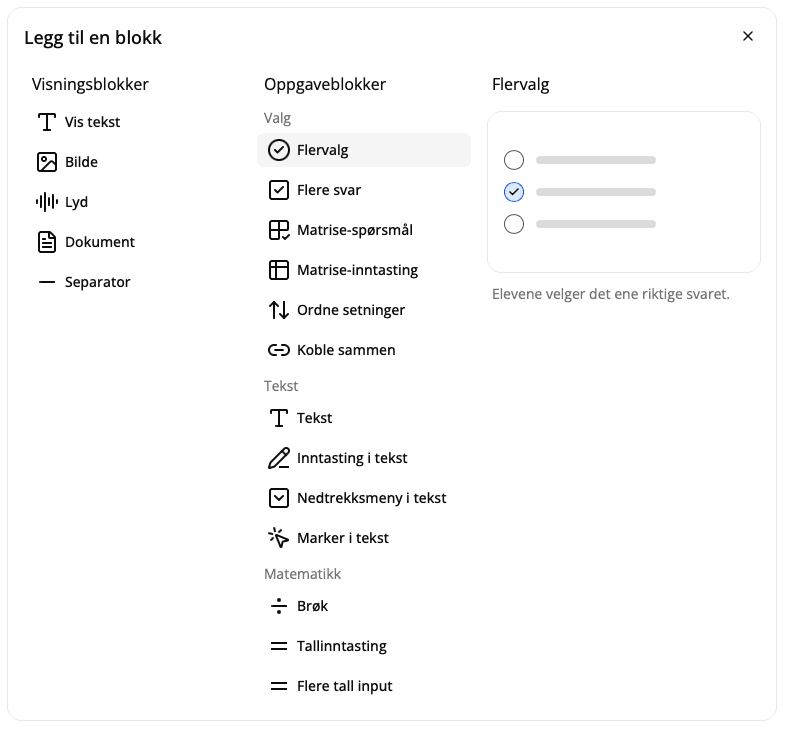
The Add a block window shows every block type. Hover over a type to see a picture and a short description. See Block types for an overview.
Fill in the block
Give the block a Title and, if you like, a Description, and fill in the task and the correct answer. New tasks are called Question and are worth 10 points. See Points and automatic grading.
Change, move and remove
Select a block to edit it. Select outside it to close it. At the top of the block you find:
- Move block up and Move block down. If you move past the first or last block, the block lands in the neighbouring section.
- Remove block. The block is removed without asking first. Select Undo if you change your mind.
You cannot drag blocks to move them, and you cannot copy blocks or sections.
Sections
Select Add section below a section to add a new one right after it. Select a section's heading to give it a Section title and Description, move it up or down, or delete it.
If you delete a section with blocks in it, you can choose:
- Keep blocks: the blocks move to the section before (or after, if it is the first).
- Delete blocks: the blocks are deleted along with the section.
If the test has only one section, you cannot delete it.
Under Settings in the editor you decide whether each section is shown as a separate page for pupils (Sections as pages), and whether pupils see the points (Show points).
Saving
Everything is saved automatically while you work. At the top right you see Saved, Saving... or Not saved!. Select the text to see when it was last saved. If saving failed, you can select Save now there. With Undo and Redo (or Ctrl + Z) you move back and forth through your changes.
Changes after the test has started
You can change the content while pupils are taking the test too. Pupils get the changes when they return to the test. Answers that are already submitted do not get new automatic points if you change the answer key. Avoid removing or changing tasks that pupils may have answered.