Getting started
Create your first test, give it to your pupils and grade it.
Here you go through a simple test from start to finish: you create it, your pupils take it, and you grade it and give feedback.
Create the test
Open Edulink Assessment
Go to Edulink Assessment(opens in a new tab), and sign in with Feide if you are asked to. You land on Administered tests, where your tests are listed.
Create the test
Select New test. You set up the test step by step, and everything you choose here can be changed later.
Give the test a name. Under Type of test you choose between two types:
- Test with multiple tasks: several tasks of different kinds, such as multiple choice, fill-in and text answers.
- Writing test: one assignment and one large writing field, for when you have a single writing task.
Choose Test with multiple tasks. Then choose when the test Opens and Closes. Pupils can only take the test in this time window.
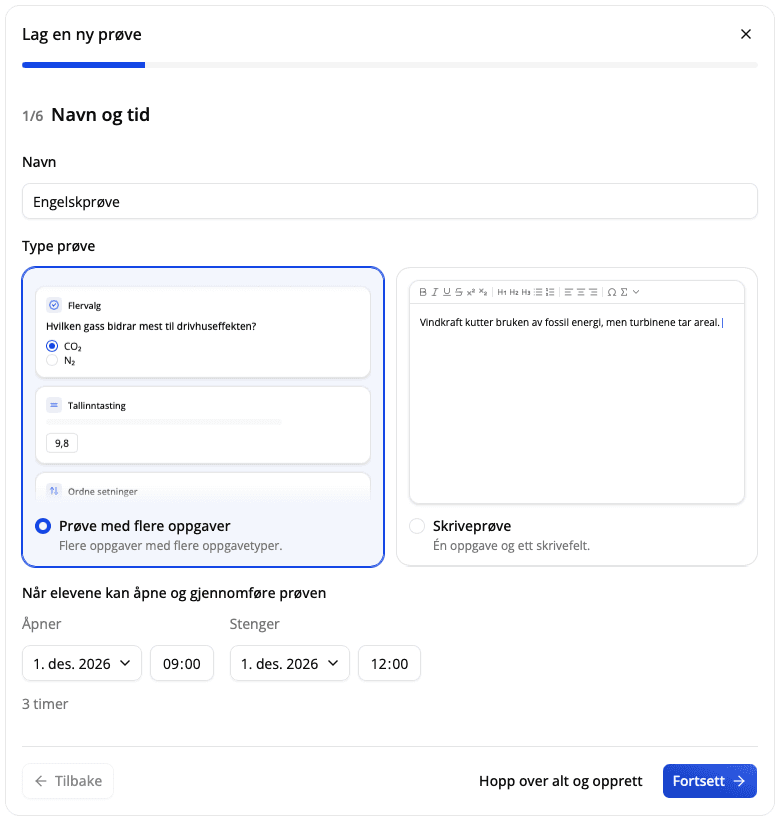
Move on with Continue through the next steps:
- Pupils: the pupils who will take the test.
- Teachers: colleagues who will administer the test with you.
- Security: secure browser and bookmarks.
- Presentation: sections as pages, whether pupils see the points, anonymous grading and spell check.
The defaults suit a first test. Check the Review and select Create test. The test is created without tasks and is not visible to pupils yet.
You land on the new test's page. From here you add tasks, publish the test and find the submissions.
Add tasks
Select Add content, then Add block, and choose Multiple choice, for example.
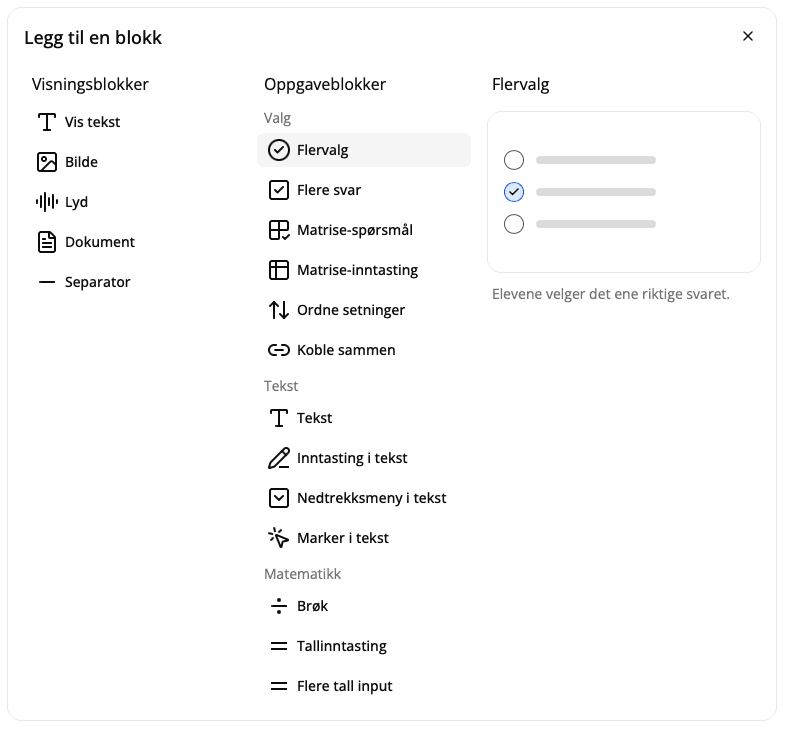
Write the question in Title, fill in the options and tick the circle in front of the correct answer.
Add more tasks the same way. Each task is worth 10 points, and everything is saved automatically while you work.
Multiple choice is just one of many task types. See Block types for the others.
Try the test yourself
Select the eye (Preview) at the top of the editor. You see the test as pupils see it, and you can answer the tasks. Your answers are not saved.
While you are there, check that you have ticked the correct answer on every task. Answers are graded the moment a pupil submits, so the answer key must be right before then.
Give the test to your pupils
Publish
Select Back until you are on the test's page again.
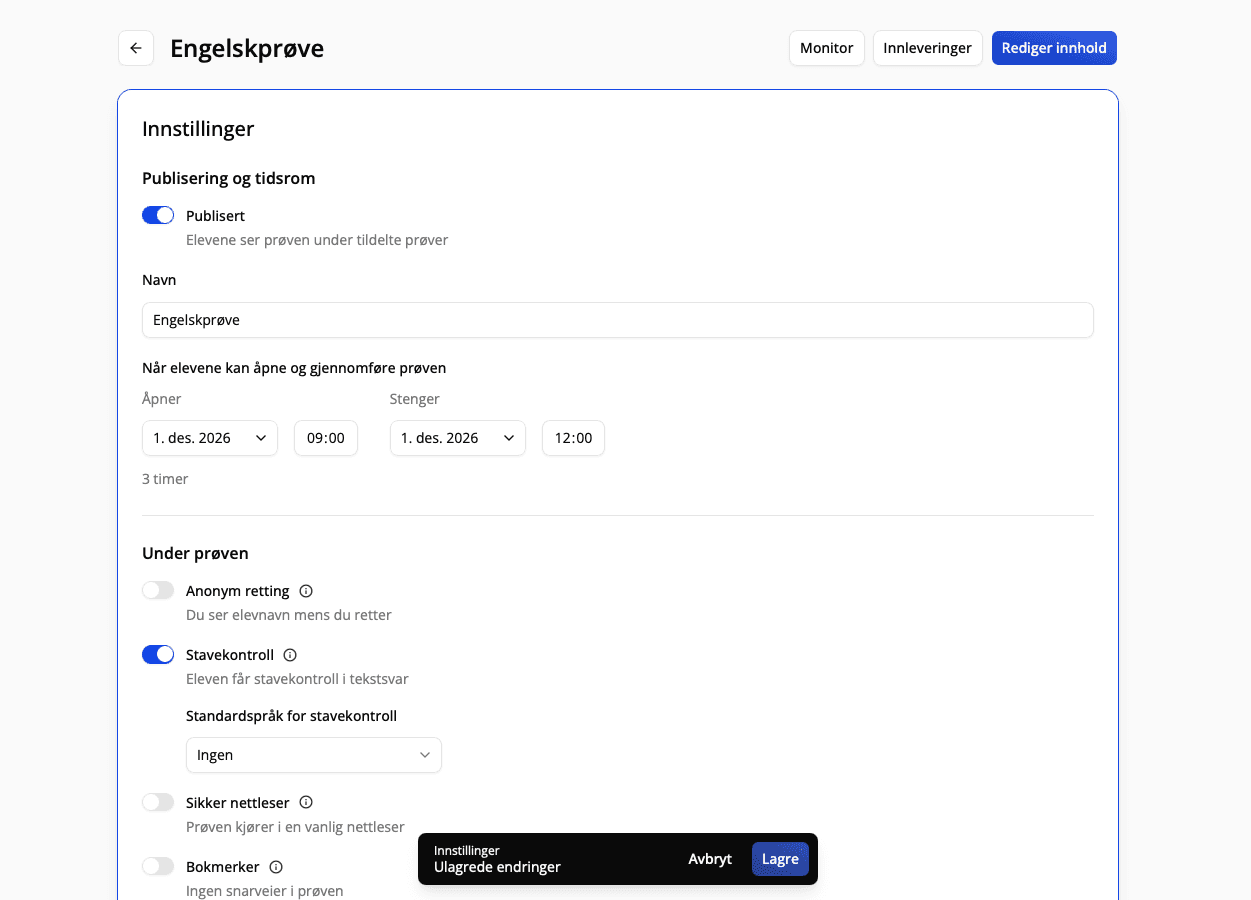
Turn on Published at the top of the Settings section and select Save at the bottom of the screen.
Pupils take the test
Ask your pupils to go to Assigned tests in Edulink Assessment and select Start test once the test has opened.
Their answers are saved automatically, and they select Hand in when they are done.
Follow along
Select Monitor at the top of the test's page to see who has started and submitted.
The test is not submitted automatically when it closes. If a pupil has forgotten to submit, select Submit on behalf of next to the pupil. If a pupil has submitted by mistake, select Reopen submission, and the pupil can continue.
Grade and give feedback
Grade
Select Submissions at the top of the test's page and select a pupil.
Multiple choice and other tasks with an answer key are already graded. If an answer is partly correct, you get a suggested score. Select Approve to keep it. Text answers you score yourself.
Enter a Grade and a Comment to the pupil in the Feedback section. Select Next to go to the next pupil. Everything is saved automatically.
Publish the feedback
Pupils see nothing of the grading until you publish it.
Go back to Submissions, tick the pupils and choose Publish feedback. You can publish for one pupil, for several or for everyone at once. Pupils find the test under Assigned tests, marked Feedback available, and select View feedback to read your grade and comment.
That was the whole journey, from new test to published feedback.
When you want more
Secure browser
Lock the test so pupils cannot reach other websites. Pupils must install it before the test day.
Accommodations for individual pupils
Give a pupil their own time window or other settings than the rest.
Writing test
One assignment and one large writing field, for when you have a single writing task.
Anonymous grading
Hide pupil names while you grade.
Grade scale
Get a suggested grade from the score.
Reuse a test
Duplicate the test for a new class, or archive it when you are done.
All features are described in the articles under For teachers in the menu.